This section documents the infrastructure behind this website and related work (summarized in the 'Projects' section).
Linux NAS & Service Platform
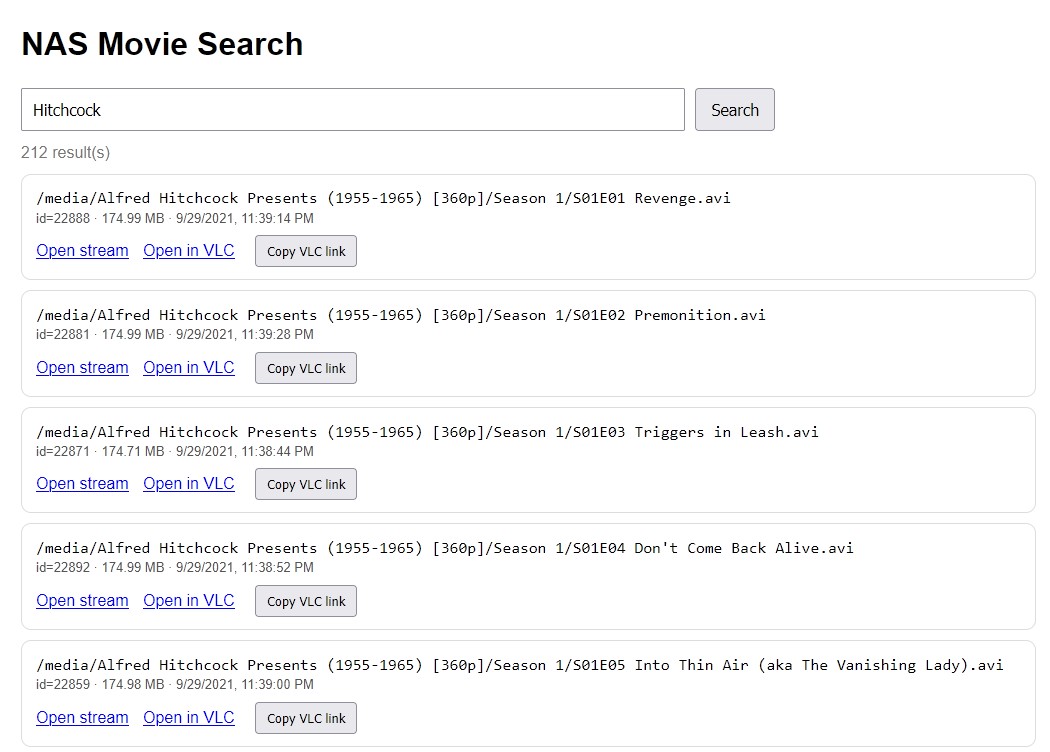
This page documents my Raspberry Pi-based NAS and service platform. The goal was to build a practical Linux environment for storage, remote access, file services, database-backed applications, and service troubleshooting.
- Server: Raspberry Pi running Linux / OpenMediaVault
- Storage: External drives mounted as Linux filesystems
- Remote Access: WireGuard VPN
- Services: Docker, FastAPI, PostgreSQL
- Networking: SMB/CIFS, local network access, VPN routing
Client Device
     |
     v
Local Network / VPN
     |
     v
Raspberry Pi NAS
     |
     v
Mounted Storage
     |
     v
File Services / Docker Services / Database
Runbooks
These runbooks document common administrative and troubleshooting procedures for the Linux NAS and media indexing platform. They are written as repeatable operational notes for checking storage, services, Docker containers, the PostgreSQL database, the Python environment, and the FastAPI application.
Entering the Python project environment
This procedure is used before running scanner scripts, local tests, or Python management commands.
cd ~/nasdbls -lahActivate the Python virtual environment:
source .venv/bin/activateConfirm Python and package availability:
which pythonpython --versionpip listWhen finished, exit the virtual environment:
deactivateIf the virtual environment is missing, recreate it from the project directory:
python3 -m venv .venvsource .venv/bin/activatepip install -r requirements.txtChecking NAS storage and mounted drives
This procedure checks whether the media storage drive is mounted and available to the scanner and API.
lsblk -fdf -hmount | grep srvCheck the expected media root:
ls -lah /srv/dev-disk-by-uuid-<drive-uuid>ls -lah /srv/dev-disk-by-uuid-<drive-uuid>/rootConfirm the scanner path exists and contains media files:
find /srv/dev-disk-by-uuid-<drive-uuid>/root -maxdepth 2 -type f | headIf the drive is not visible, check OpenMediaVault, physical USB/SATA connections, drive power, and whether the filesystem mounted correctly after reboot.
Checking Docker and Docker Compose services
This procedure checks whether the application containers are running.
cd ~/nas-homelab/composedocker compose psCheck all Docker containers:
docker psdocker ps -aReview recent logs:
docker compose logs --tail=100Review logs for a specific service:
docker compose logs --tail=100 postgresdocker compose logs --tail=100 apiIf a service is stopped, try restarting the stack:
docker compose restartIf configuration changed, rebuild and restart:
docker compose up -d --buildChecking the PostgreSQL database
This procedure checks whether the PostgreSQL container is running and whether the application database is reachable.
cd ~/nas-homelab/composedocker ps | grep postgresOpen a PostgreSQL shell inside the database container:
docker exec -it nas-postgres psql -U nasuser -d nasdb
Useful commands inside psql:
\dt\d files\d scan_runsSELECT COUNT(*) FROM files;SELECT COUNT(*) FROM scan_runs;SELECT * FROM scan_runs ORDER BY id DESC LIMIT 5;Exit PostgreSQL:
\qIf the database cannot be reached, check whether the container is running, whether the database credentials match the project environment variables, and whether Docker networking is healthy.
Checking application environment variables
This procedure verifies that the application has the required database and scan path settings.
cd ~/nasdbls -lah .envcat .envImportant values include:
DATABASE_URL=postgresql://<user>:<password>@<host>:<port>/<database>SCAN_DATABASE_URL=postgresql://<user>:<password>@localhost:<port>/<database>SCAN_ROOT=/srv/dev-disk-by-uuid-<drive-uuid>/rootReal database passwords and private environment values are intentionally ommitted. This public runbook shows only the structure.
Running the media scanner manually
This procedure manually indexes media files from the NAS filesystem into PostgreSQL.
cd ~/nas-homelab/composedocker exec -it nas-api /app/scan.pyAfter scanning, check the database:
docker exec -it nas-postgres psql -U nasuser -d nasdbSELECT COUNT(*) FROM files;SELECT * FROM scan_runs ORDER BY id DESC LIMIT 5;
Common scanner problems include an incorrect SCAN_ROOT, missing drive mount, file permission issues, database connection errors, or schema mismatch.
View Scanner Logs
This procedure determines what happened during an automatic or manually triggered scan.
View recent service logs:
sudo journalctl -u nas-media.serviceShow only the current day's activity:
sudo journalctl -u nas-media.service --since todayTimer-related events can be inspected separately:
sudo journalctl -u nas-media.timerThis distinction is useful because:
nas-media.timer
     |
     v
nas-media.service
     |
     v
Docker API container
     |
     v
scan.py
A timer problem and a scanner problem therefore have different logs.
Checking the FastAPI application
This procedure checks whether the API is running and responding locally.
cd ~/nas-homelab/composedocker compose psdocker compose logs --tail=100 apiTest the API from the NAS:
curl -I http://localhost:<api-port>curl http://localhost:<api-port>/filesCheck the API health endpoint:
curl http://localhost:<api-port>/healthIf the API is not responding, check container status, logs, environment variables, database connectivity, and whether the expected port is exposed.
Testing media search and streaming endpoints
This procedure verifies that the indexed files can be searched and streamed through the API.
Search for indexed media:
curl "http://localhost:<api-port>/files?q=<search-term>"Test a media endpoint by file ID:
curl -I "http://localhost:<api-port>/media/<file-id>"Test HTTP Range support:
curl -I -H "Range: bytes=0-1023" "http://localhost:<api-port>/media/<file-id>"Expected results: a successful response from the API. For range requests, the response should indicate partial content.
Restarting the application stack safely
This procedure restarts the Docker-based application services without rebooting the entire NAS.
cd ~/nas-homelab/composedocker compose psdocker compose restartdocker compose psIf the stack needs to be fully stopped and started:
docker compose downdocker compose up -ddocker compose psAfter restarting, verify logs and API response:
docker compose logs --tail=100curl -I http://localhost:<api-port>Reviewing system and service logs
This procedure checks logs when the NAS, Docker services, database, or API are behaving unexpectedly.
Check system logs:
journalctl -xejournalctl -p err -n 100Check Docker logs:
cd ~/nas-homelab/composedocker compose logs --tail=200Check service status:
systemctl status docker --no-pagersystemctl status ssh --no-pagerCommon things to look for include failed mounts, permission denied errors, database connection errors, missing environment variables, container restart loops, and disk space warnings.
Checking disk usage and available space
This procedure checks whether the NAS or application services are running out of space.
df -hdu -sh /srv/dev-disk-by-uuid-<drive-uuid>/rootdocker system dfCheck large files in the project directory:
cd ~/nas-homelabdu -sh *If Docker is consuming too much space, review unused images and containers carefully before pruning:
docker system dfdocker image lsdocker container ls -aDo not remove Docker volumes unless the database and application data have been backed up.
Backing up the PostgreSQL database
This procedure creates a PostgreSQL database dump that can be stored separately from the running container.
Precondition: Ensure that ~/nas-backups exists.
docker exec nas-postgres pg_dump -U nasuser nasdb >~/nas-backups/nasdb-$(date +%Y-%m-%d).sqlConfirm the backup file exists:
ls -lh ~/nas-backupsA database backup should be copied to another storage location. A backup stored only on the same device does not protect against disk failure.
Basic recovery checklist
This checklist is used when the NAS media application is not working as expected.
- Confirm the NAS is powered on and reachable over the network.
- SSH into the NAS.
- Check available disk space with
df -h. - Confirm the media drive is mounted with
lsblk -f. - Confirm Docker is running with
systemctl status docker. - Check containers with
docker compose ps. - Check application logs with
docker compose logs --tail=100. - Confirm PostgreSQL is reachable with
psql. - Confirm the API responds locally with
curl. - Run the scanner manually if the database is stale.
- Document the problem, likely cause, fix, and follow-up work.
Security
The Linux NAS and media indexing platform was built as a private home infrastructure project, so the main security goal is to keep storage, services, and administrative access limited to trusted devices and networks.
- Source of truth: Media files remain on the NAS storage drives, not the application container or database.
- Limited exposure: NAS services are intended for local or VPN access rather than public internet exposure.
- Remote access: WireGuard encrypts off-site access instead of exposing file shares or administrative services directly.
- Service separation: Docker Compose separates application services such as the FastAPI and PostgreSQL database.
- Database credentials: Application secrets are stored in environment config rather than hard-coded into source files.
- Filesystem permissions: Media paths are checked carefully to avoid unnecessary write access or broad permissions.
- Administrative access: SSH is used for maintenance, troubleshooting, and deployment tasks from trusted machines.
- Backups: Database backups and storage recovery procedures are treated as part of the security posture.
- Sensitive details: Public documentation avoids publishing internal system details.
Maintenance
The NAS platform is maintained through regular checks of storage, mounted drives, Docker containers, database health, application logs, and scanner results. The goal is to keep the system understandable, recoverable, and easy to troubleshoot.
- Check storage health: Confirm that expected drives are mounted, available, and not running out of space.
- Review Docker services: Use Docker Compose to confirm that the API and PostgreSQL services are running correctly.
- Review logs: Check application, Docker, and system logs when services behave unexpectedly.
- Verify database state: Check PostgreSQL tables, scan run history, and indexed file counts.
- Run scanner manually when needed: Re-run the Python scanner after adding, moving, or reorganizing media files.
- Test API endpoints: Confirm that search and media streaming endpoints respond as expected after service changes.
- Back up the database: Create PostgreSQL dumps before major schema, container, or application changes.
- Document changes: Record configuration changes, troubleshooting steps, and recovery procedures.
- Update carefully: Apply system, Docker, Python, and dependency updates intentionally, with service checks afterward.
- Validate: After power loss or reboot, confirm mounts, Docker status, database availability, and API response.
The maintenance process is intentionally simple: check the storage layer first, then Docker, then the database, then the application.