I've collected digital music for a long time. I keep it on my computer in FLAC format, and often encode to MP3 for use on a dedicated MP3 player. As a result, the formatting has become quite inconsistent over time.
For instance, here is an excerpt of some individual tracks:
04. The Evil That Men Do.mp3
01.-Dancing With The Moonlight Knight.mp3
Allan Holdsworth - Velvet Darkness.mp3
Dream Theater - The Great Debate.mp3
02. Jethro Tull - Thick As A Brick (Part 2).mp3
And some similarily inconsistent album directories:
[1982] Signals
1977 - Aja
1960-Giant Steps
1971 Fragile
I wanted to standardize everything without manually renaming thousands of files and hundreds of directories, So I wrote a few small PowerShell scripts using regular expressions.
Most use the same basic pattern. First, recursively find files or folders, using
-replace to construct a cleaner name. Then pass the result to
Rename-Item.
I used these against my main music collection under my Windows C: drive, as well as the
collection on my MP3 player mounted on the D: drive.
The examples below generally use D:\Music, but the path can be changed to point somewhere else.
Additionally, I changed the .mp3 extension to .flac when I pointed it towards my main music
collection.
One crucial detail: All of these examples use PowerShell's -WhatIf option.
That shows what would be renamed without actually changing anything. Once I was satisfied
with the results, I simply removed -WhatIf and ran the command again. This was
deliberate as it's very easy to make serious accidental changes running scripts like these.
Removing track numbers from filenames
A lot of modern MP3 players can parse track names from album lists like:
01. Paradigm Shift.mp3
02. Osmosis.mp3
03. Kindred Spirits.mp3
But as I found out with a recently purchased MP3 player, this depends on what kind of formatting is recognized. While my MP3 player was able to parse titles like the ones above, it failed with other titles:
08 The Dance Of A Thousand Lights.mp3
3 Moanin'.mp3
4 - Another Year.mp3
The files I was working with all had the track numbers in the metadata, so I wanted to remove those prefixes entirely for completely consistent formatting:
Get-ChildItem -Path "D:" -Filter ".mp3" -Recurse | ForEach-Object {
    # Regex matches 1-2 digits followed by a space or separator
    $newName = $_.Name -replace '^\d{1,2}(\.\s*-\s*|\.\s+|\s*-\s*|\s+)', ''

    if ($newName -ne $_.Name) {
        Write-Host "Renaming: '$($_.Name)' -> '$newName'" -ForegroundColor Cyan
        Rename-Item -LiteralPath $_.FullName -NewName $newName -WhatIf
    }
}
So the above six titles became:
Paradigm Shift.mp3
Osmosis.mp3
Kindred Spirits.mp3
The Dance Of A Thousand Lights.mp3
Moanin'.mp3
Another Year.mp3
The "^" anchors the regular expression to the beginning of the filename, while
"\d{1,2}" matches a one or two digit track number.
Removing track numbers only when there is a separator
The above works well for directories where every track is formatted with the track title. But not so much for directories containing files such as:
2 Minutes To Midnight.mp3
22 Acacia Avenue.mp3
7 Days To The Wolves.mp3
54 Duncan Terrace.mp3
For directories including files like these, I made a stricter version requiring punctuation after the initial number, so it is less likely to accidentally change a song whose actual title begins with a number.
Get-ChildItem -Path "D:" -Filter ".mp3" -Recurse | ForEach-Object {
    # Regex requires (. , -, or .-)
    $newName = $_.Name -replace '^\d{1,2}(\.\s*-\s*|\.\s+|\s*-\s*)', ''
    if ($newName -ne $_.Name) {
        Write-Host "Renaming: '$($_.Name)' -> '$newName'" -ForegroundColor Cyan
        Rename-Item -LiteralPath $_.FullName -NewName $newName -WhatIf
    }
}
This was useful when I wanted to be more conservative about what the script considered a track number.
Removing artist names from song filenames
Another common format in my collection was:
Allan Holdsworth - Velvet Darkness.mp3
Dream Theater - The Great Debate.mp3
Because the music was already organized into artist and album directories, I didn't need the artist repeated in every filename.
This script removes a two-word artist name followed by a dash, and can easily be modified to remove a single-word artist name:
Get-ChildItem -Path "D:\Music\" -Filter "*.mp3" -Recurse | ForEach-Object {
    # Matches exact string "Allan Holdsworth - " at the start of the filename
    $newName = $_.Name -replace '^Allan\s+Holdsworth\s*-\s*', ''

    if ($newName -ne $_.Name) {
        Write-Host "Renaming: '$($_.Name)' -> '$newName'"
        Rename-Item -LiteralPath $_.FullName -NewName $newName -WhatIf
    }
}
This particular script turned Allan Holdsworth - Velvet Darkness.mp3 into
Velvet Darkness.mp3 among many others. I easily modified it for other artists as
well, renaming entire discographies of songs into my preferred format.
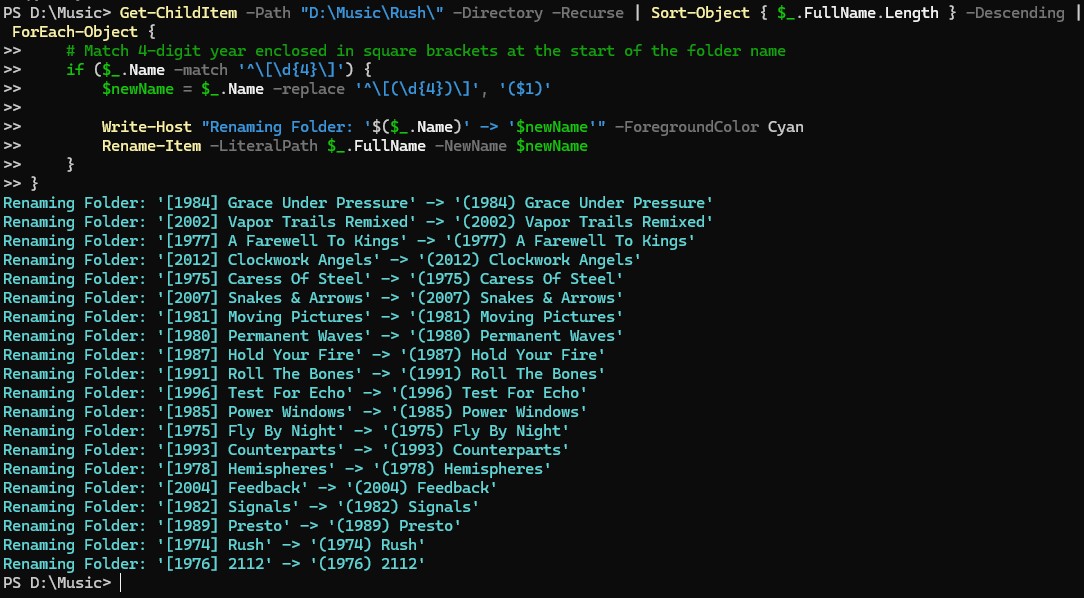
Changing "[YEAR] Album" to "(YEAR) Album"
I also standardized album directories so that years always appeared in parentheses. For folders
such as [1982] Signals, I used:
Get-ChildItem -Path "D:\" -Directory -Recurse | Sort-Object { $_.FullName.Length } \
-Descending | ForEach-Object {
    # Matches a 4-digit year in square brackets
    if ($_.Name -match '^\[\d{4}\]') {
        $newName = $_.Name -replace '^\[(\d{4})\]', '($1)'

        Write-Host "Renaming Folder: '$($_.Name)' -> '$newName'" -ForegroundColor Cyan
        Rename-Item -LiteralPath $_.FullName -NewName $newName -WhatIf
    }
}
Which changed the directory name to (1982) Signals. I sorted recursive directories
by path length, which avoided changing the path of a parent folder while PowerShell was still
trying to process children beneath it.
Changing "YEAR - Album" to "(YEAR) Album"
Other common album formats included:
1977 - Aja
1960-Giant Steps
I standardized both of those with:
Get-ChildItem -Path "D:" -Directory -Recurse | Sort-Object { $.FullName.Length } \
-Descending | ForEach-Object {
    # Matches 4 digits followed by a hyphen ("1977 - " or "1977-")
    if ($_.Name -match '^\d{4}\s*-\s*') {
    # Reformats into curved brackets with a clean space
    $newName = $_.Name -replace '^(\d{4})\s*-\s*', '($1) '
        Write-Host "Renaming Folder: '$($_.Name)' -> '$newName'" -ForegroundColor Cyan
        Rename-Item -LiteralPath $_.FullName -NewName $newName -WhatIf
    }
}
The "\s*" portions allow zero or more spaces around the hyphen, taking care of
both issues in the same expression.
Changing "YEAR Album" to "(Year) Album"
Lastly, I had some album folders containing only the year followed by the album title:
1971 Fragile
2016 Handmade Cities
For which I ran:
Get-ChildItem -Path "." -Directory | ForEach-Object {

    # Match four digits at the beginning followed by a space.
    if ($_.Name -match '^(\d{4})\s+(.+)$') {

        $newName = $_.Name -replace '^(\d{4})\s+(.+)$', '($1) $2'

        Write-Host "Renaming Folder: '$($_.Name)' -> '$newName'" -ForegroundColor Cyan
        Rename-Item -LiteralPath $_.FullName -NewName $newName -WhatIf
    }
}
A surprisingly useful PowerShell exercise
None of these scripts are particularily complicated, but as somebody more accustomed to Linux, I found writing them to be a practical exercise in the world of the Windows terminal.
Instead of spending countless hours manually renaming files, I could describe the changes with a little bit of
regular expressions, preview hundreds of changes with -WhatIf, and apply them all at once.
And that was just enough to rectify years of inconsistent formatting.